Adobe CC Installation
Adobe Creative Cloud Installation Guide
After completing the Adobe CC request form, you will need to to login with your San José State University credentials, including your SJSU email and SJSUOne credentials, to access, download, and install Creative Cloud applications.
Step-by-Step Creative Cloud Desktop Installation Guide
| Step | Direction | Screenshot Example |
| 1 |
|
|
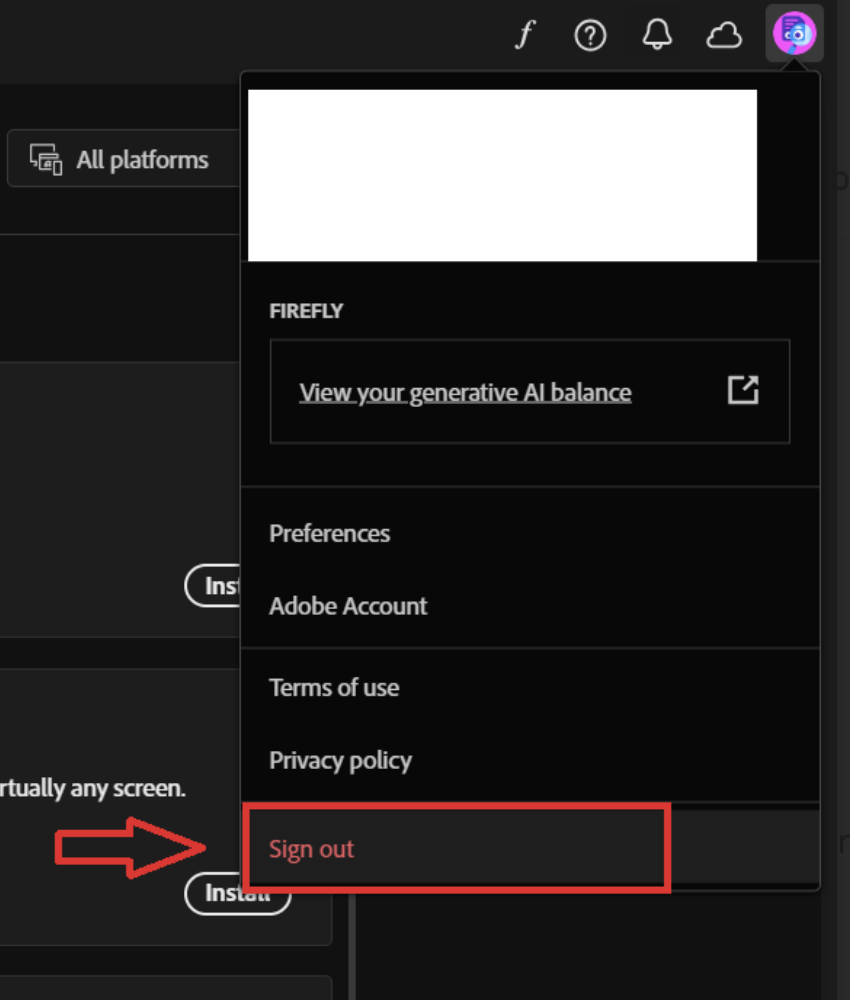
| Go to your profile in the top right corner, click on it. You will be able to see an option “Sign out”. Press on that to sign out from the Adobe Creative Cloud. |
|
|
| 2 | Navigate to https://www.adobe.com/home |  |
| 3 | Click on the Sign In link located in the upper right corner of the page. | 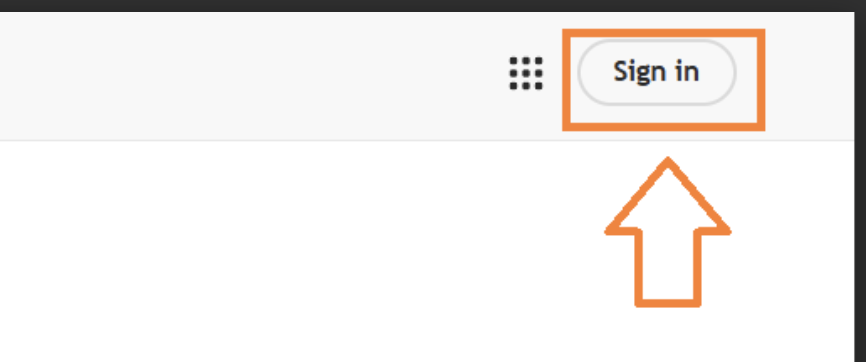 |
| 4 | On the Adobe ID Sign In window, type in your San Jose State University email address, and press Continue. |
|
| 5 | This will redirect you to the SJSUOne Login page. Please login using your SJSU ID and password. |
|
| 6a | After logging in, you will see the main website of Adobe. Click on the Profile Icon on top right and select “Install Creative Cloud Desktop” option to download the setup of Adobe Creative Cloud. | 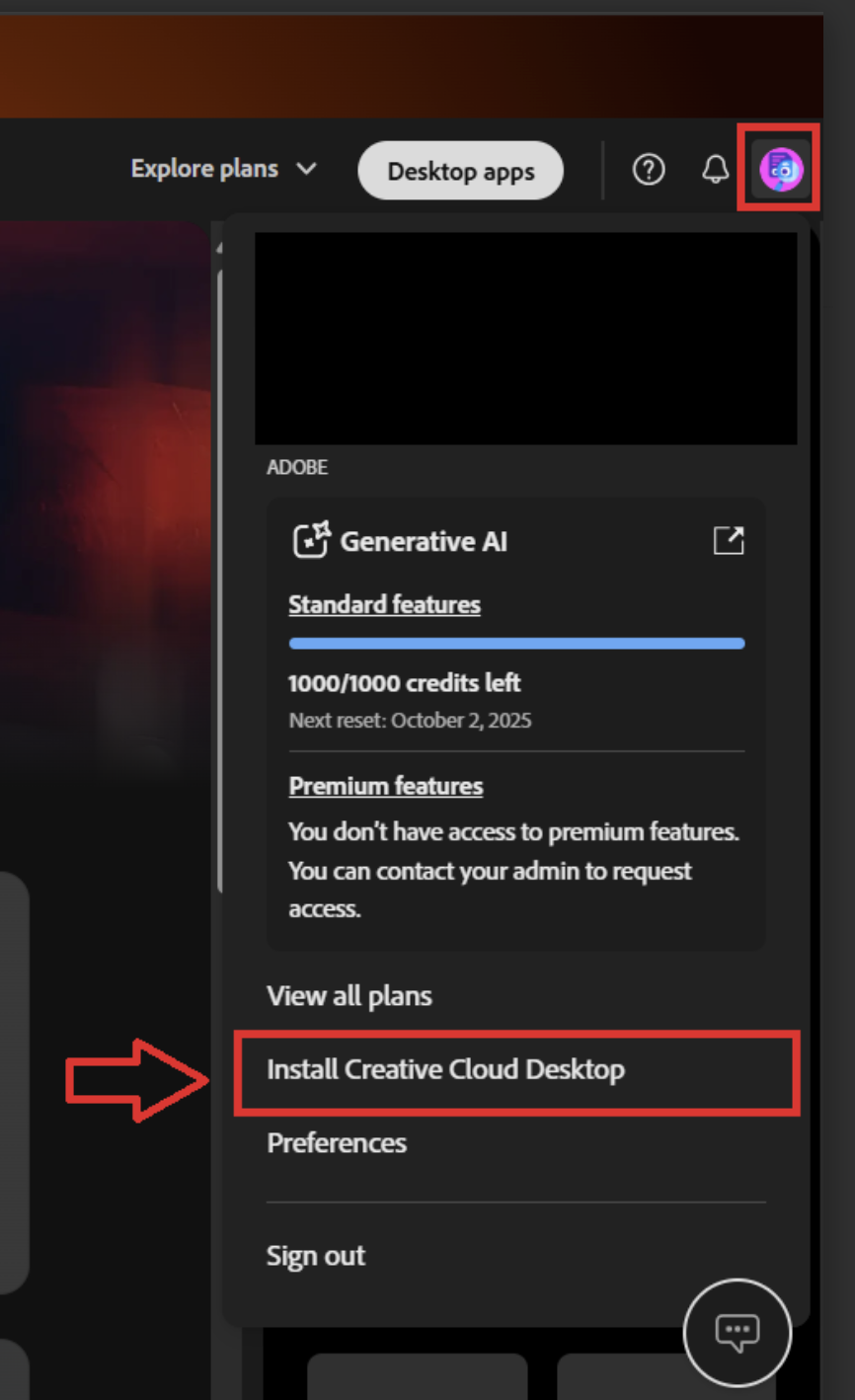 |
| OR | ||
| 6b | Otherwise, you can go to Apps Section in the left pane. | 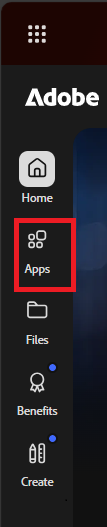 |
| 6c | Inside the Apps section, you can download Adobe Creative Cloud setup under the More Apps from Adobe section. | 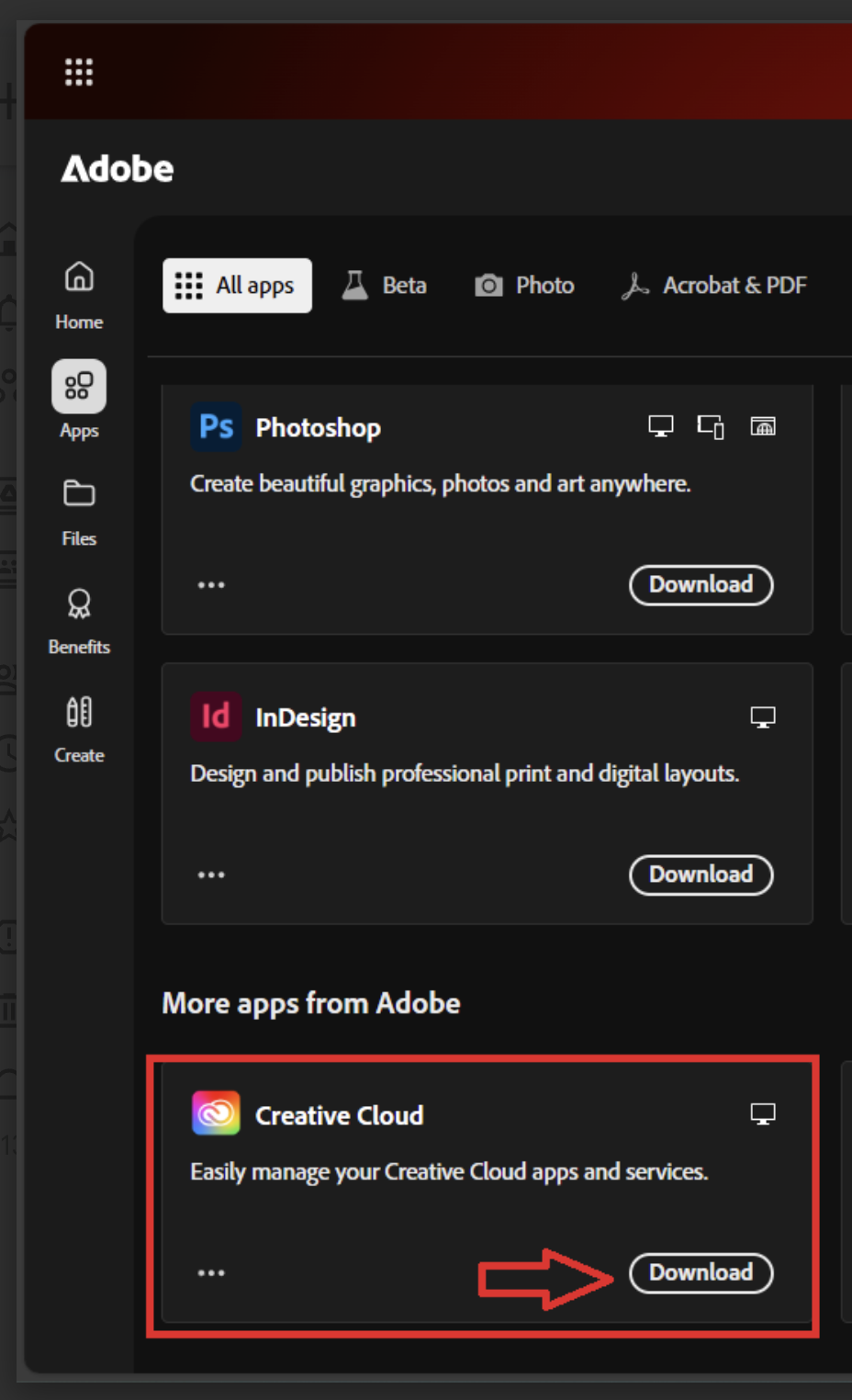 |
| OR | ||
| 6d | Also, you can click on Desktop Apps on the Home Page, under which you can download Adobe Creative Cloud Setup. | 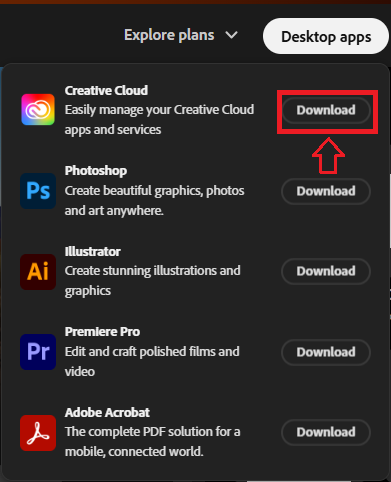 |
| 7 |
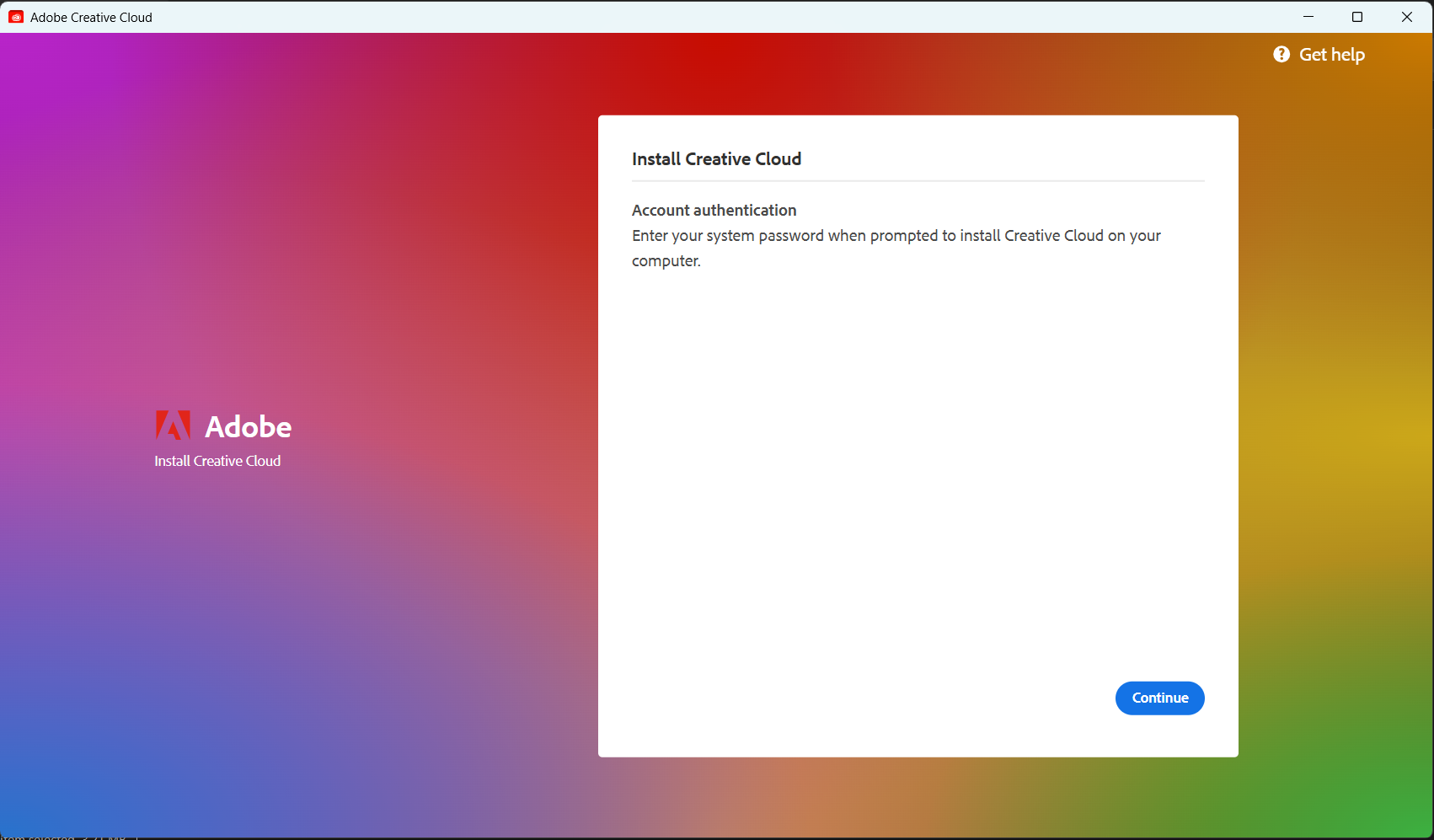
Once the download is complete, locate and launch the install file. Once you click the setup file, it will prompt you to enter your system password to install Creative Cloud. |
 |
| 8 |
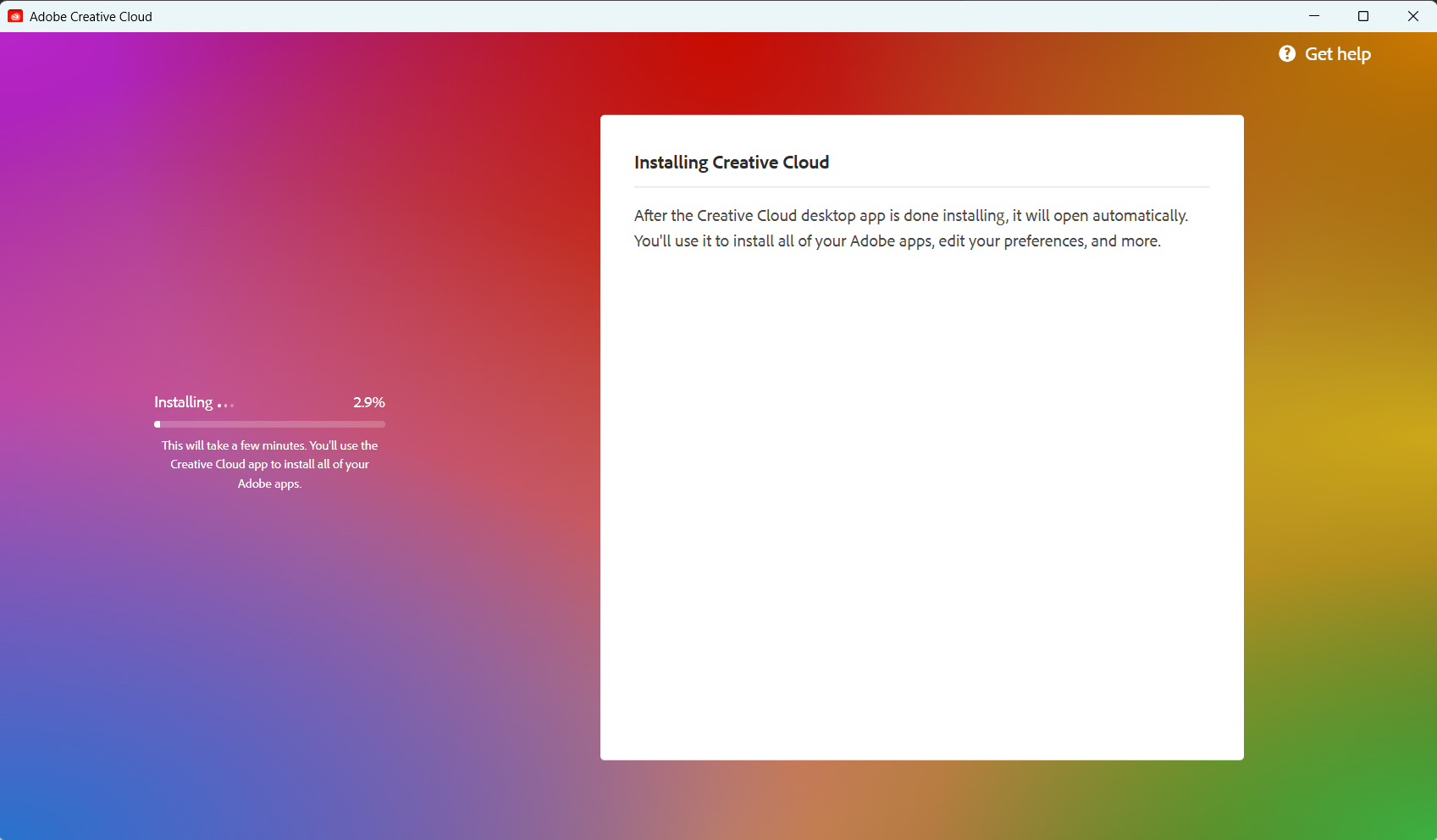
Once you enter your system Username and password, the installation will begin. |
 |
| 9 |
Once installed, Adobe Creative Cloud will open automatically. If it does not, manually open the Creative Cloud Desktop application from your desktop. |
|
| 10 |
Once the app is opened, click on Install on any number of applications you want to install. If you choose more than one, the applications will install in the order that you selected them. |
|
|
Note that you should wait for the applications to install completely. If you are prompted to update your applications, select Yes to ensure that you have the latest version of the product license. |


If you need assistance or have any questions, please contact the Center for Faculty Excellence and Teaching Innovation (CFETI) at cfeti@sjsu.edu or 408.924.2337.
